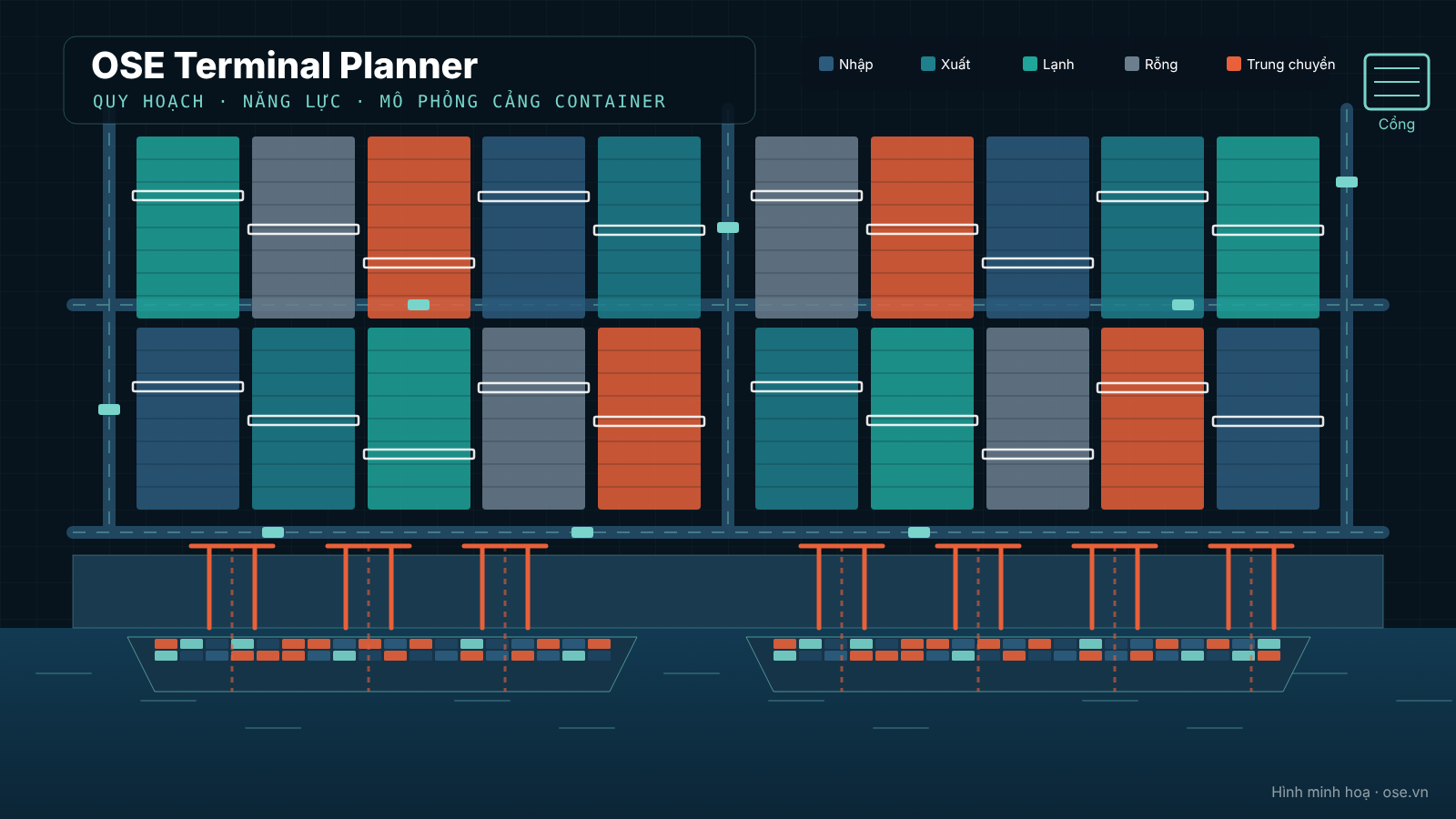
Introducing OSE Terminal Planner: container terminal layout, capacity and simulation in the browser
OSE Terminal Planner puts the whole container-terminal planning workflow into one web app: layout drawing or AutoCAD import, Excel input templates, subsystem capacity, yard planning, discrete-event simulation, 3D view and scenario comparison.
Nguyen Minh Quy··2 min read
Planning a new container terminal — or expanding an existing one — comes down to a few concrete questions: can the berths, yard and gates handle the forecast throughput, which subsystem becomes the bottleneck, and which layout option performs better? Engineers usually answer them with separate tools: CAD for the layout, spreadsheets for capacity, a dedicated package for simulation, and it is hard to keep the numbers consistent.
OSE Terminal Planner brings the whole workflow into one web application: layout drawing, input data, static capacity, yard operation planning, discrete-event simulation, 3D view and reports. It runs in the browser at ctplanner.ose.vn, and a team can work on the same project.
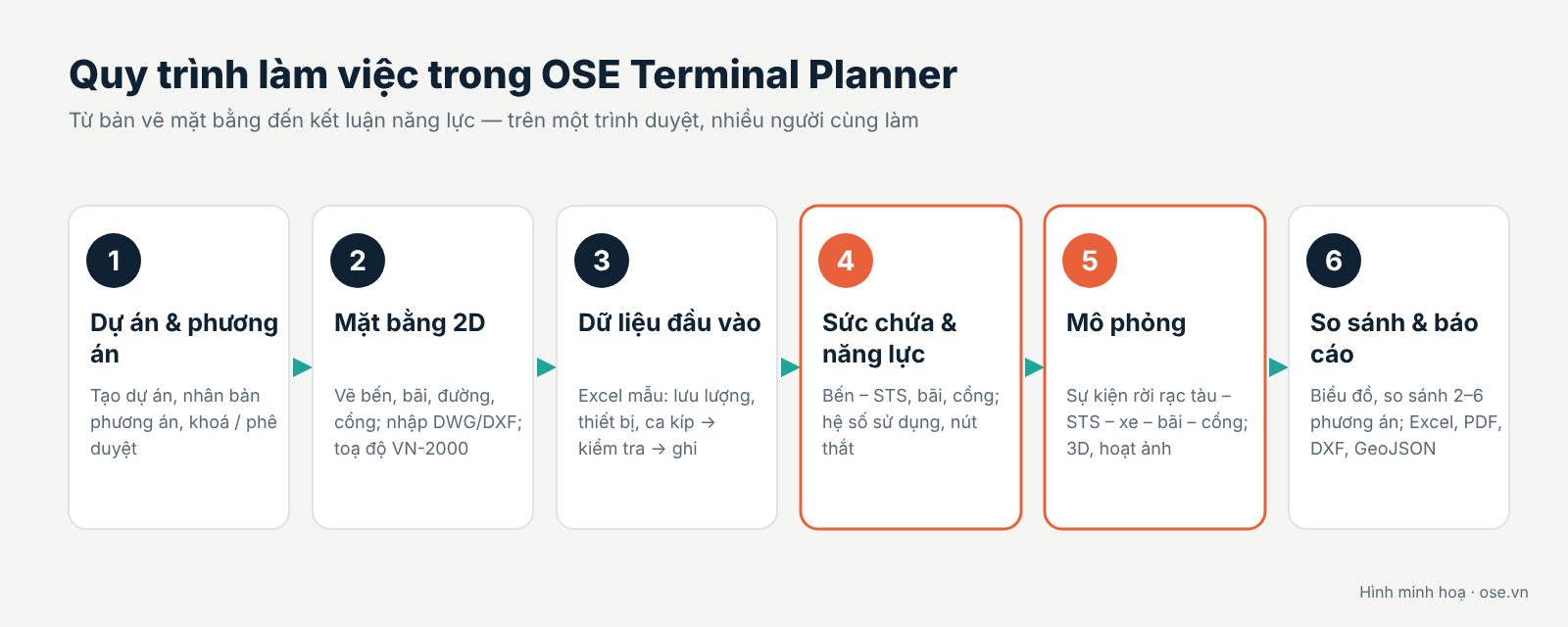
Workflow
Six steps: project and scenarios, 2D layout, input data, capacity, simulation, comparison and reports
Projects and scenarios — greenfield or existing terminals; scenarios are cloned, validated, approved and locked.
2D layout — draw berths, yard, roads and gates; generate yard blocks automatically; import AutoCAD DWG/DXF and background images; set the project coordinate system (e.g. VN-2000); automatic geometry checks (overlaps, boundary, clearances, road connectivity).
Input data — throughput by cargo class (import, export, transhipment, empty, reefer, DG, OOG), dwell times, design vessel, shifts and equipment (STS, RTG, RMG, ASC, straddle carrier, reach stacker…) through forms or an Excel template with upload → validate → commit and rollback.
Capacity — static capacity of every subsystem (berth/STS, yard by cargo class, yard cranes, horizontal transport, gates) with utilisation, bottleneck, formulas and assumptions.
Yard planning and simulation — typical-week yard allocation by cargo class; discrete-event simulation of vessel – STS – truck – yard – gate with replications and warm-up; 3D model and equipment animation.
Comparison and reports — compare 2–6 runs, plot results, export Excel/PDF reports, DXF for AutoCAD and GeoJSON for QGIS / Google Earth.
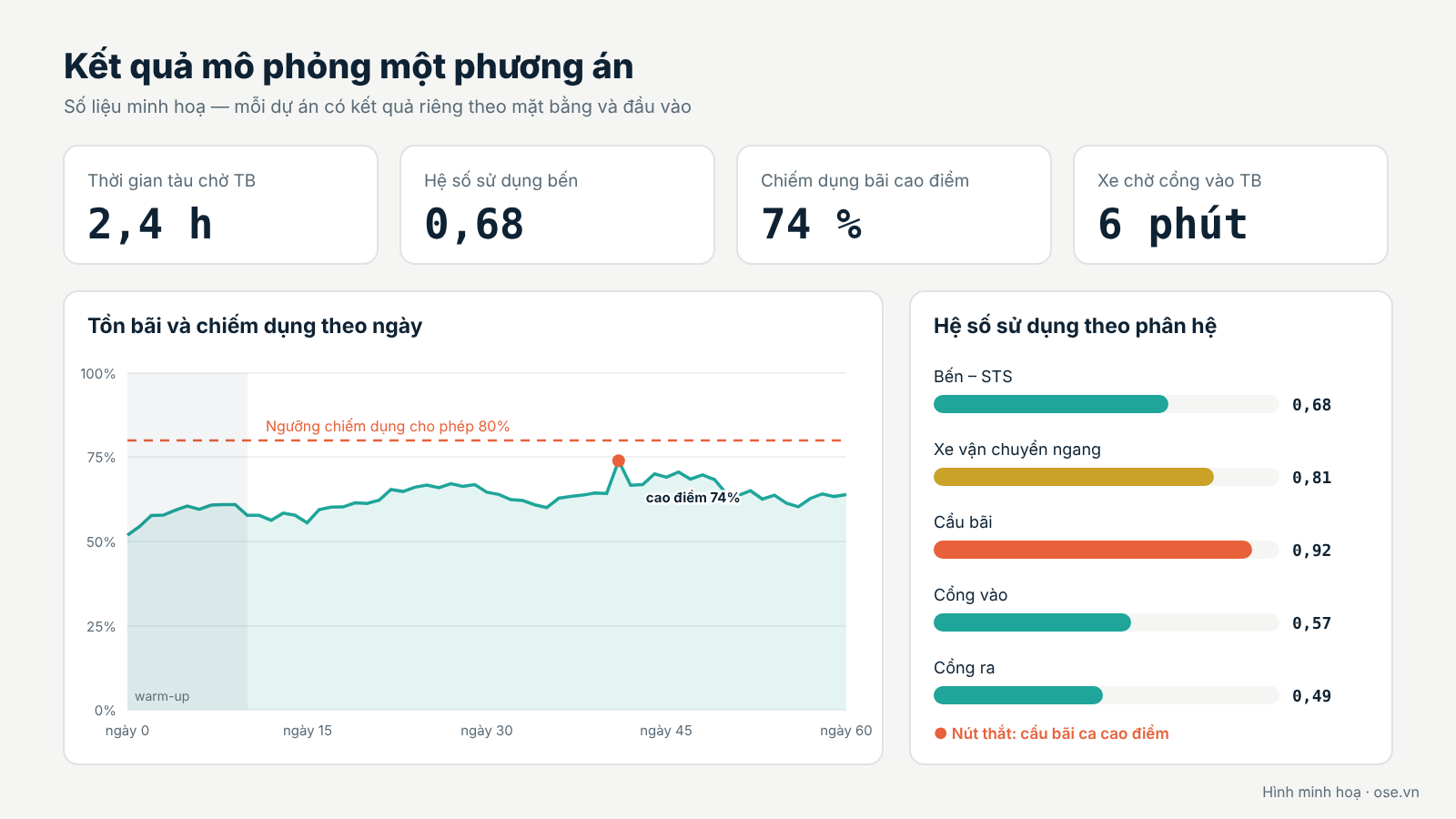
Example simulation results: vessel waiting time, berth utilisation, yard occupancy by day and utilisation by subsystem (illustrative data)
Each project has members with roles (admin, planner, analyst, reviewer, viewer) and an audit log; every result is tied to the data and layout version it was calculated from.
Try it: open ctplanner.ose.vn and run the sample project. To set up a project with your own data, contact quynm@portlogistics.vn.
Figures in this article are illustrations; chart values are not results of a specific project.
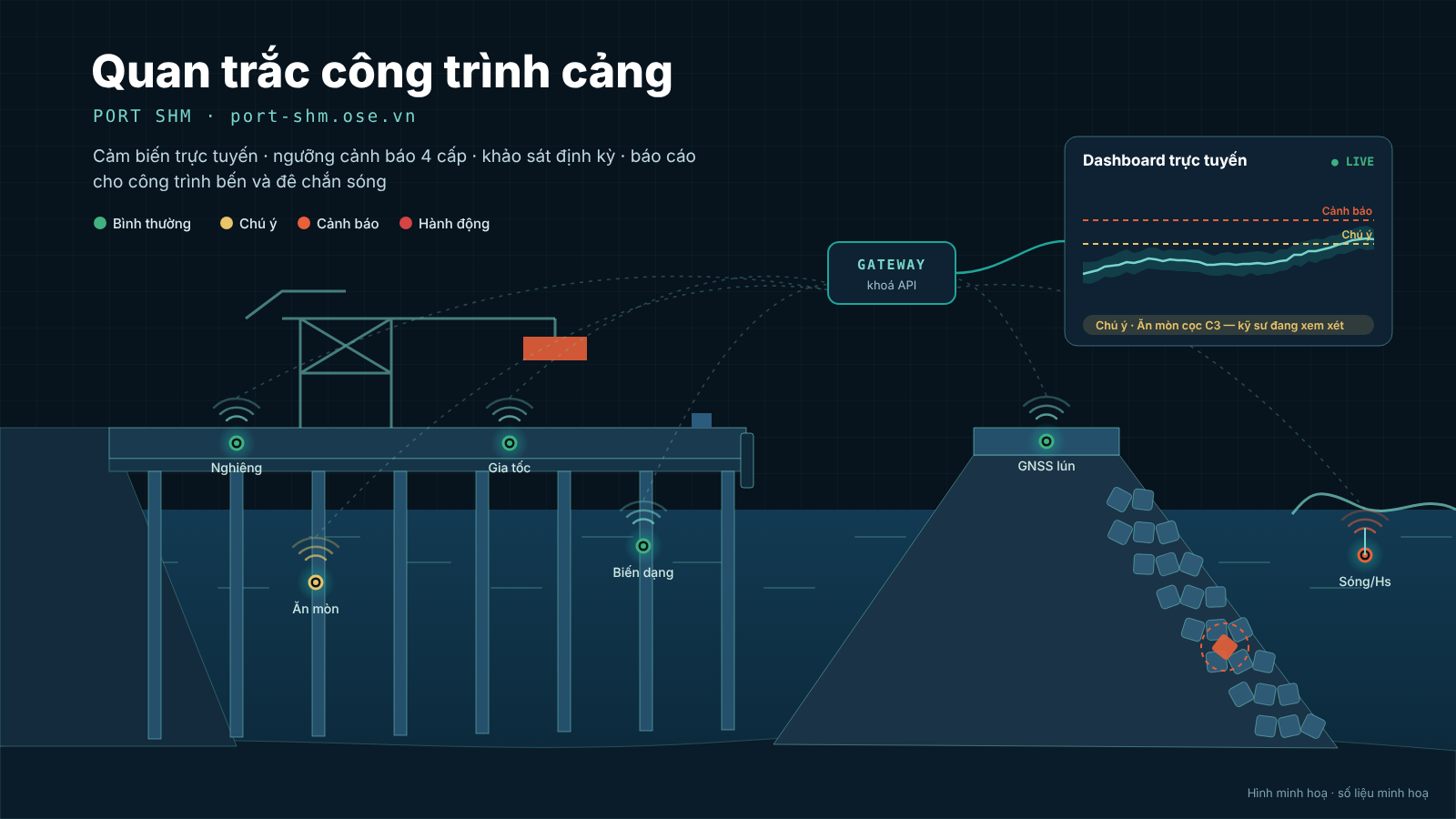
Port SHM brings sensor data, wave/wind/water-level data and periodic surveys of berths and breakwaters into one web app: live dashboard, approved thresholds, four alert levels, engineer recommendations, TCVN 13330 condition grades and automatic reports.